
Guide
How to add a booking link to Instagram, Google, Facebook and your website
A booking page nobody can find takes no bookings. These are the four places most customers will look, with the exact steps for each and the catches we have run into.
About 15 minutes 7 steps Updated
Your booking page only takes bookings if people can find it. Most customers will look in one of four places: your listing on Google, your Instagram profile, your Facebook Page, or your website. Each one takes a few minutes to set up and never needs doing again.
Bookings from all of them are free. We charge no commission on a booking wherever it comes from, including a brand-new customer who found you on Instagram. Some booking systems now charge a percentage for exactly those.
The steps for Google, Instagram and Facebook are for their apps and websites as of September 2026. They move their menus around now and then, so if a label has changed, look for the nearest match.
Your link
Copy your booking link
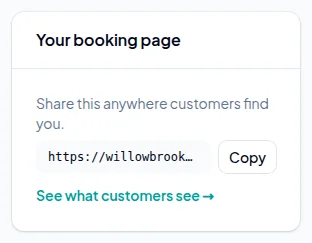
Your booking page has its own address, like your-business.takebookingsnow.co.uk. It is on your Dashboard under Your booking page: press Copy and it is ready to paste anywhere below.
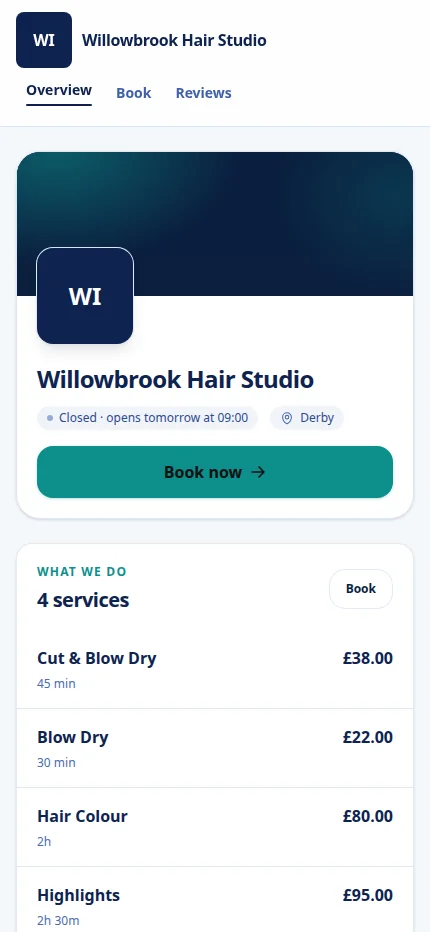
Open it on your own phone first. That is how most customers will see it.
Link straight to one service when it helps
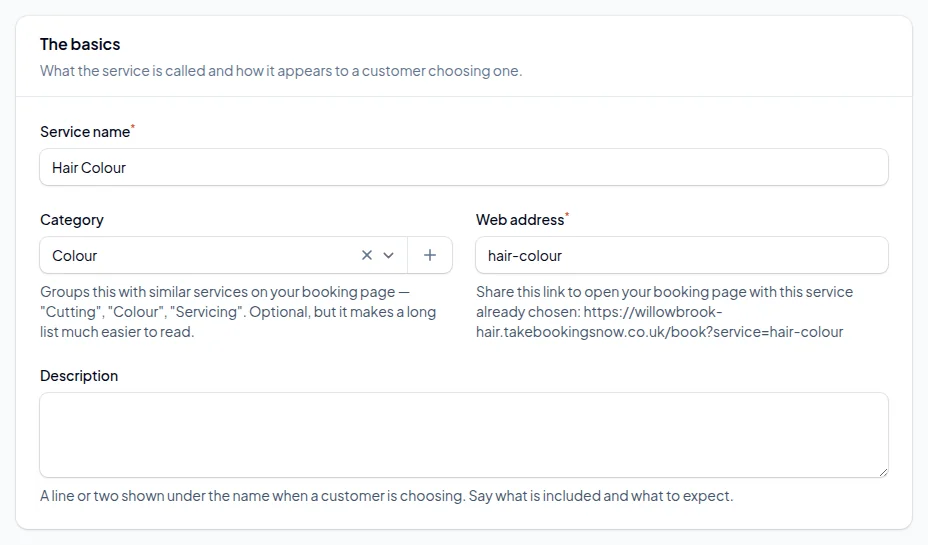
Every service has its own link too, which opens your booking page with that service already chosen. Find it under Services, on the service, next to Web address.
Use it wherever you are talking about one thing: an Instagram post about balayage, a Facebook ad for an MOT, an email about a new treatment. Every extra tap between "I want that" and a time to book loses somebody.
Add it to your Google Business Profile
For most local businesses this is the one that matters most: people search your name or "hairdresser near me" and see your listing before they ever reach your website.
Signed in to the Google account that manages your profile, search for your business name on Google. On your profile, select Booking, then Add link. Paste your booking link and Save. On Google Maps, it is Edit profile, then the booking option. If you already have a link from an old booking system, remove it or use Set preferred link so Google shows yours.
Google has rules for these links. Your profile must be verified. The link must go to a page for your business where the customer can actually book, which your booking page is. Links to social media and link shorteners are not allowed. Google checks the link and it can take a few days to show.
Check how your booking page looks in a search
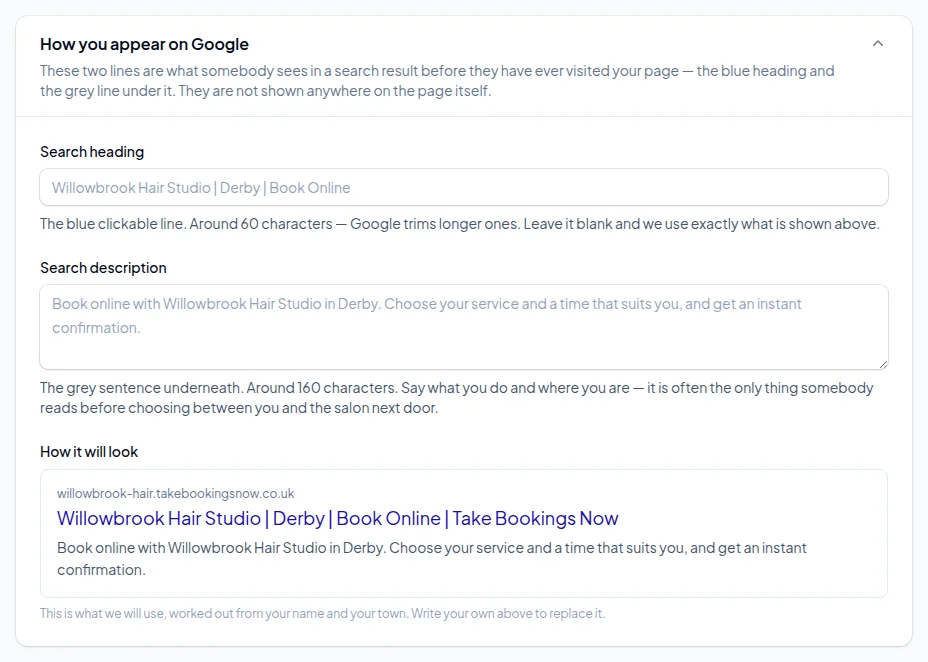
Your booking page can show up in Google results on its own. Under Your booking page → Public page → How you appear on Google you can write the heading and the line underneath that people see in results.
Leave them blank and they are written for you from your name and town. If you change them, put what you do and where you are in the first few words: "Balayage and colour in Derby" beats "Welcome to our salon".
Put it in your Instagram bio
In the Instagram app, go to your profile and tap Edit profile, then Links, then Add external link (on Android, Add link). Paste your booking link, give it a title like Book an appointment, and tap Done. You can have up to five links; drag the booking one to the top.
Instagram's own Book now button only connects to the booking companies Instagram partners with, and we are not one of them. The link in your bio does the same job: one tap and they are on your booking page. Then say "link in bio to book" on posts and stories, and add a link sticker to stories.
Facebook and your website
Add it to your Facebook Page
Switch into your Page, go to its details and put your booking link in the Website field. Then write a short post with the link ("You can now book online, any time: …") and pin it to the top of your Page.
Facebook Pages can also have an action button: open the Page, choose Options (the three dots), then Add action button. Which buttons can link to an outside website has changed a few times. If you are offered one that takes a web address, use your booking link. If Book now only offers Facebook's partner apps, leave it and rely on the website link and the pinned post.
Put a Book now button on your website
Whoever built your website, whether that is Wix, Squarespace, WordPress, GoDaddy or a friend, can add a button that links to your booking page. Put it at the top of every page, not only on a "Contact" page. People who are ready to book should not have to scroll.
If you edit the site yourself, a normal button or link to your booking address is all it needs. If somebody else looks after it, send them the link and ask for "a Book now button in the header".
The same link works on anything printed. Make a QR code from it for your price list, appointment cards, the window and the receipt, so somebody leaving can book their next visit before they reach the car.
Stuck on a step?
Talk to a person. Start a live chat, or email [email protected] and tell us which step you are on — we will help you finish it.
Common questions
No. That needs a Reserve with Google partnership, which we do not have. You can add your booking link to your Google Business Profile, and customers tap it and book on your page.
Instagram's Book now button only works with its approved booking partners, and we are not one. Put your booking link in your Instagram bio instead: it takes customers to the same place in one tap.
No. There is no commission or new-client fee on any booking, wherever the customer found you.
Yes. Each service has its own link that opens your booking page with that service already chosen. It is shown on the service, next to its web address.
Link to it rather than embedding it. Your booking page works on its own address and is built for phones, so a Book now button that opens it is the most reliable way.
You can, but every place you have pasted the old link, including Google, Instagram, Facebook, your website and anything printed, would need changing, so it is worth choosing a link you will keep.
More guides
How to set up online booking for your business
Create your account, add your services and team, and get your booking page live. Every screen, in order, with screenshots.
How to set up class and group bookings
Weekly class times, places in each class, the list of who is coming, and what customers see when they book a place.
How to take deposits for appointments
Connect Stripe, choose a fixed or percentage deposit per service, and decide what happens to it when somebody cancels.
How to cut no-shows without upsetting good customers
Reminders at the right time, texts for the people who ignore email, deposits where they matter, and a policy customers actually see.
How to set staff hours, lunch breaks and holidays
Opening hours, who works when, split shifts, a lunch break that repeats every week, and holidays.
Ready to set yours up?
14 days free. No card required. Set up in an afternoon.
Claim your booking link
See if the address you want is free. No account, no card — it takes a second.
No card required · 14 days free · Your progress is saved, so you can stop and come back