
Guide
How to set up class and group bookings
Yoga, fitness, dance, swimming, workshops — anything where you set the time and people book a place until it is full. Here is how it is set up, and what your customers see.
About 10 minutes 9 steps Updated
An appointment belongs to one customer: once somebody books 2pm, 2pm is gone. A class works the other way round. You decide when it runs and how many people fit, and customers book places on it until it is full.
Classes and one-to-one appointments live side by side on the same booking page and in the same diary, so a studio can run a Monday evening class and still take massage bookings in the afternoon. This guide uses a beginners yoga class for 12 people.
Set up the class
Make the service a class
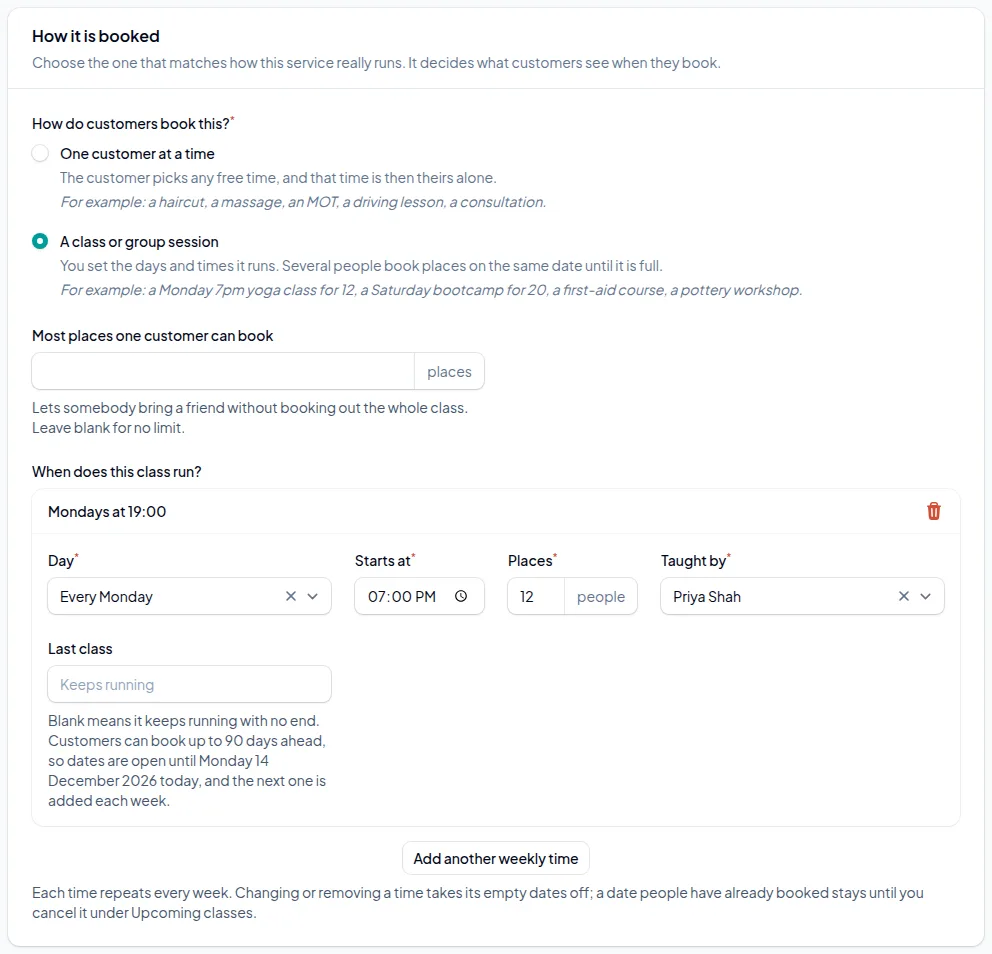
Open Services and add a new service, or edit an existing one. Under How it is booked, choose A class or group session.
You can do the same while registering: the services step asks How do customers book this? for every service you add, and a class set up there has dates ready to book the moment you are approved.
Say when it runs and how many can come
Under When does this class run? add a weekly time: the day, the start time, the number of places and who teaches it. The length of the class comes from the service. Add another weekly time for a class that runs more than once a week.
Leave Last class blank and it keeps running. Customers can book as far ahead as your booking window allows, and the form tells you the exact date bookings are open until. Put in a last date for a term or a six-week course.
Most places one customer can book lets somebody bring a friend without taking the whole class. Leave it blank for no limit.
Set the price per place
The price of a class is per person. Somebody booking two places pays for two.
Online payment works exactly as it does for appointments: nothing online, a deposit, or full payment when they book, through your own Stripe account. Confirmations, reminders and cancellation rules all apply to class bookings too.
Run your classes
See every upcoming class
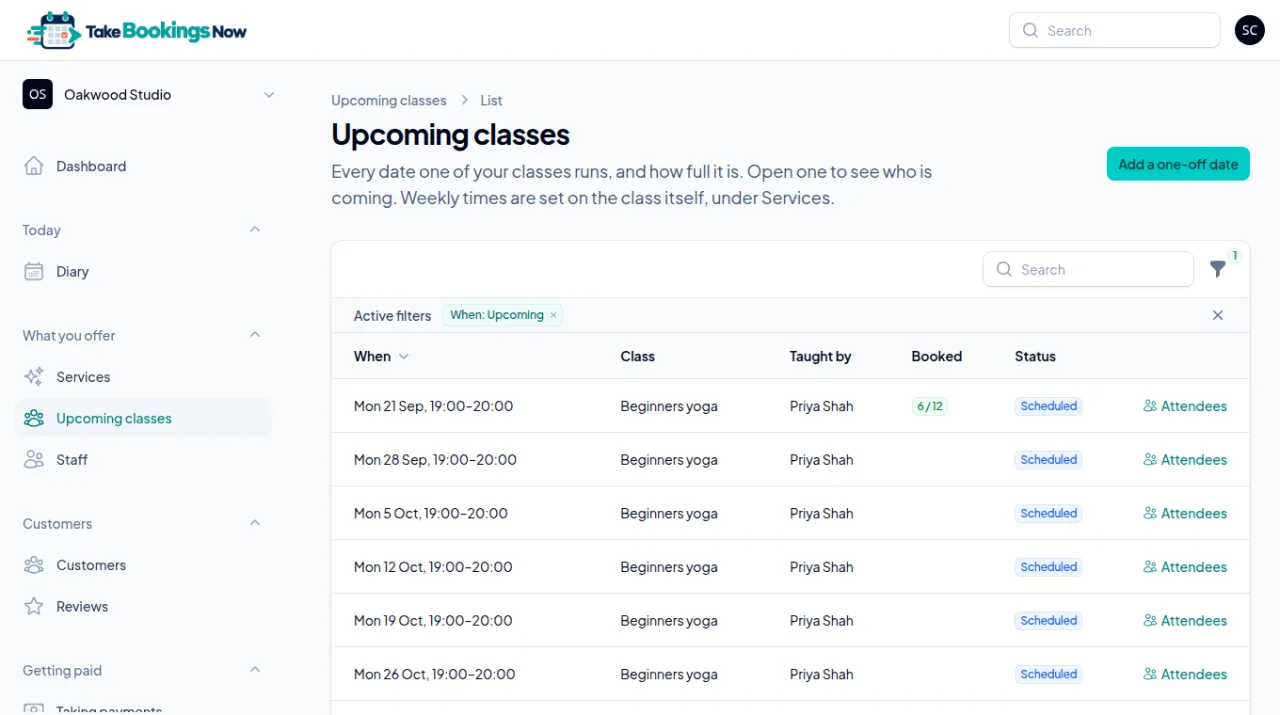
Upcoming classes in the menu lists every date each class runs, who teaches it and how full it is. New dates are added automatically as time moves on.
Need an extra date — a bank holiday special, a one-off workshop? Choose Add a one-off date. Classes also show in your diary, and the teacher cannot be booked for an appointment while they are teaching.
Check who is coming
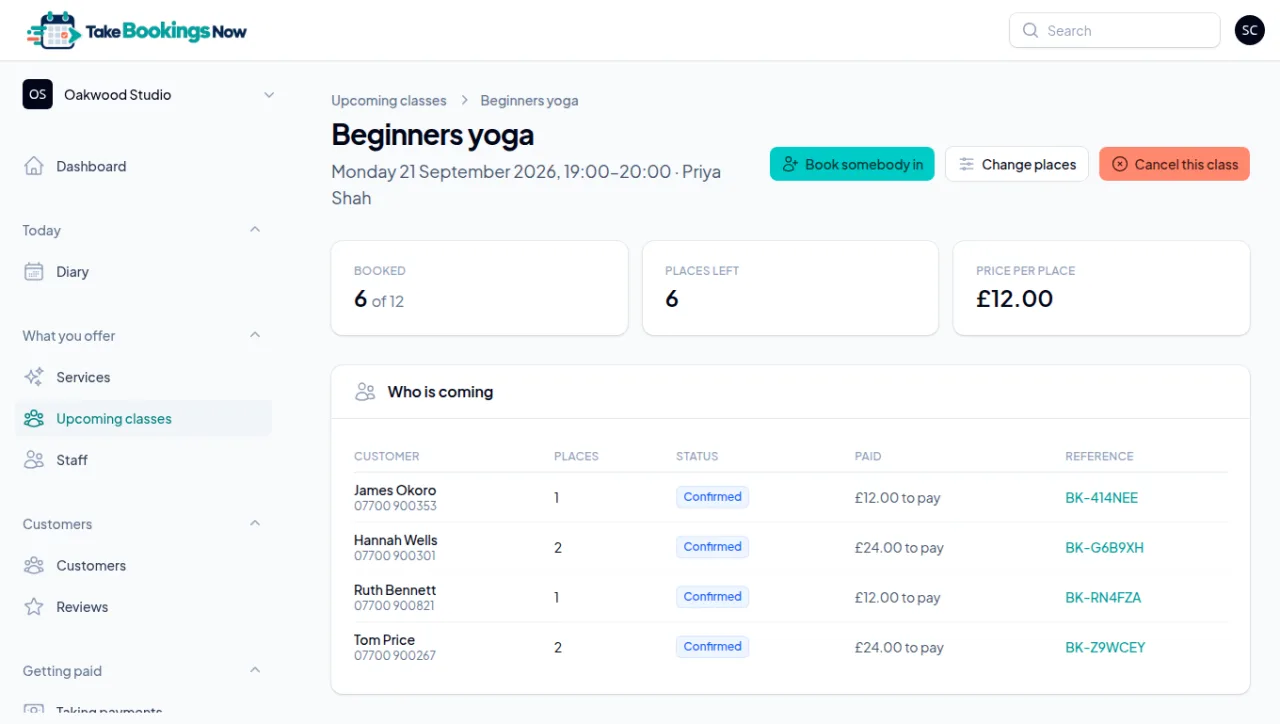
Open a date to see the list: each customer, how many places they booked, whether they have paid, and their booking reference. It is the register to have at the door.
From here you can Book somebody in — including one more on a class that is already full — Change places for just this date, move the class while nobody has booked it yet, or Cancel this class. Cancelling cancels every booking on it and tells each customer, with the reason if you give one.
What your customers see
They choose the class
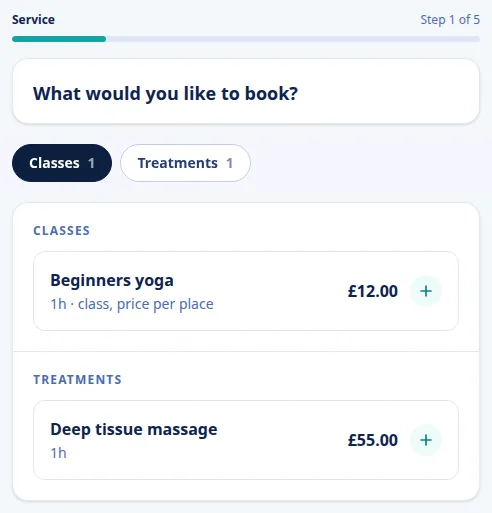
On your booking page the class sits with your other services, marked as a class with its price per place.
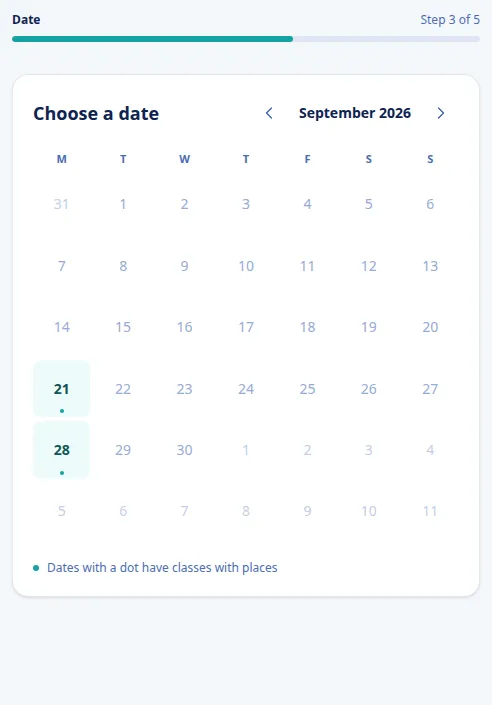
They pick a date
Dates with a dot have a class with places left. A class that has filled up is still listed as full, so nobody wonders whether it is on.
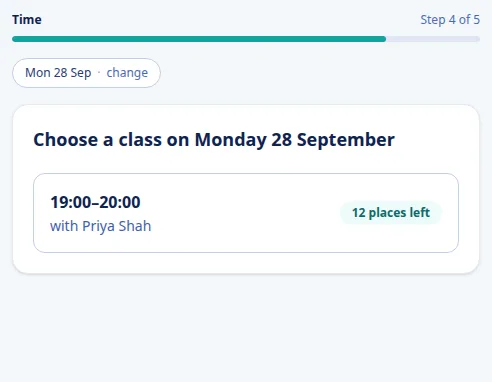
They pick the class
Each class that day is listed with its time, the teacher and how many places are left.
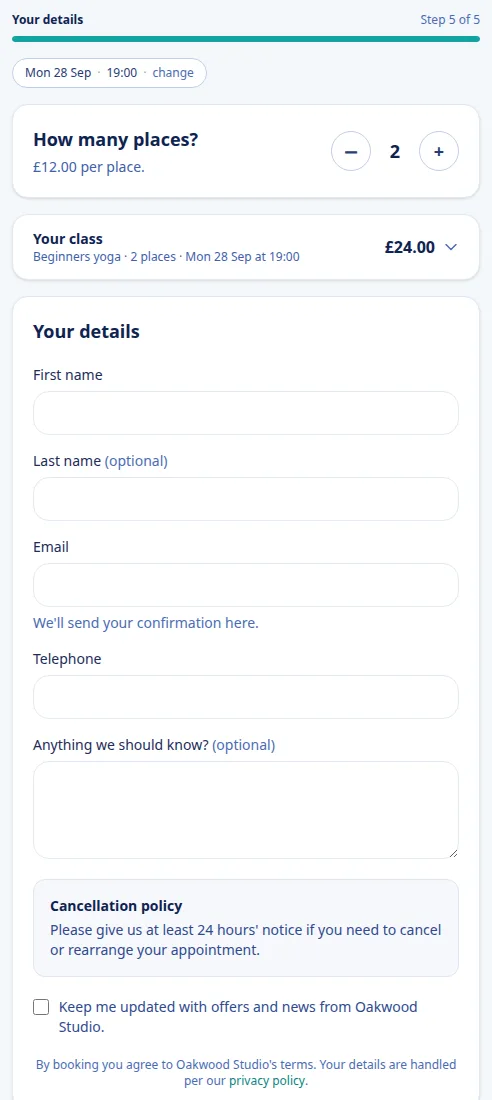
They choose how many places and book
They choose how many places, see the total, and fill in their details. They get a confirmation straight away, and any reminders you have set up before the class.
If you let customers change their own bookings, they can cancel within your cut-off or move to another date of the same class from the link in their confirmation.
Stuck on a step?
Talk to a person. Start a live chat, or email [email protected] and tell us which step you are on — we will help you finish it.
Common questions
Yes. Each service is either one customer at a time or a class, and both appear on the same booking page and in the same diary.
As many places as you set for it, up to 1,000. You can change the number of places for a single date without changing the rest.
Yes. They choose how many places when they book and pay for each one. You can set a most-places-per-customer limit so nobody books out the whole class.
Every booking on that date is cancelled and each customer is told, with your reason if you give one. Refunds for anybody who paid online are issued from the booking.
Yes, around their classes. While they are teaching a class they cannot be booked for an appointment, so the two never overlap.
Not today. Each booking is paid for on its own. If you sell blocks of classes, take that payment yourself and let customers book each class they come to.
Yes, as a class with a last date. Customers book each week as its own place, and each booking gets its own reminder.
More guides
How to set up online booking for your business
Create your account, add your services and team, and get your booking page live. Every screen, in order, with screenshots.
How to take deposits for appointments
Connect Stripe, choose a fixed or percentage deposit per service, and decide what happens to it when somebody cancels.
How to cut no-shows without upsetting good customers
Reminders at the right time, texts for the people who ignore email, deposits where they matter, and a policy customers actually see.
How to add a booking link to Instagram, Google, Facebook and your website
Your booking link on Google, in your Instagram bio, on your Facebook Page and on your own website, with a direct link for each service.
How to set staff hours, lunch breaks and holidays
Opening hours, who works when, split shifts, a lunch break that repeats every week, and holidays.
Ready to set yours up?
14 days free. No card required. Set up in an afternoon.
Claim your booking link
See if the address you want is free. No account, no card — it takes a second.
No card required · 14 days free · Your progress is saved, so you can stop and come back