
Guide
How to set staff hours, lunch breaks and holidays
Online booking is only as good as the hours behind it. Get these right once and nobody gets booked into a lunch break, a day off or a week in Spain.
About 10 minutes 7 steps Updated
Online booking offers a time only when every rule behind it says yes: the business is open, the person works that day, they are not on a break or on holiday, and nobody is booked in already. Set those rules once and you stop getting bookings at 12:45 on the day somebody takes a long lunch.
There are two layers. Opening hours are the outer limits for the whole business. Each person then has their own working hours inside those, plus breaks and time off. This guide sets up a salon open 9 to 5, Monday to Friday, with three stylists who each take lunch at a different time.
The business
Set your opening hours
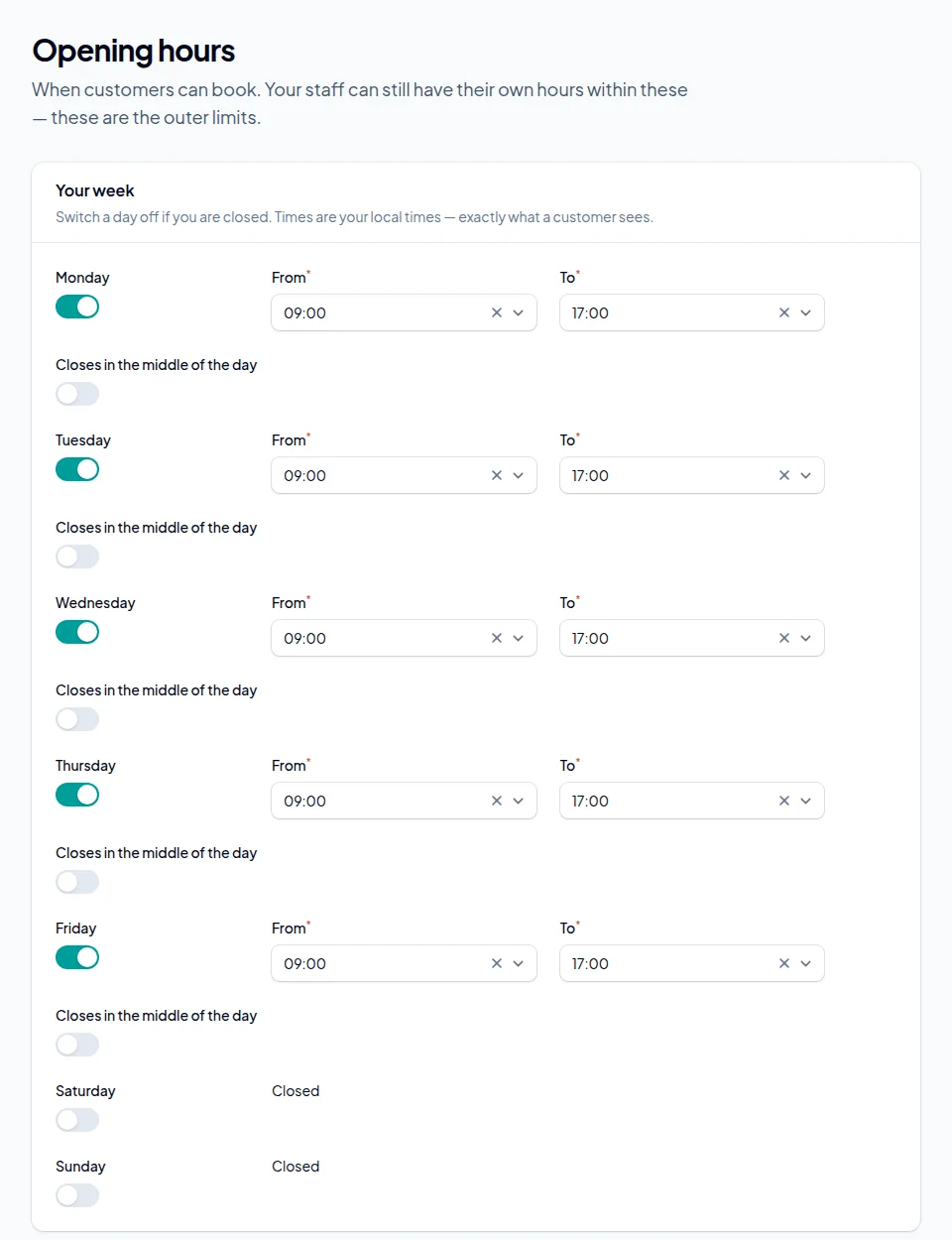
Go to Settings → Opening hours. Switch each day on or off and choose the times. The times are your local time, exactly as a customer will see them, so British Summer Time takes care of itself.
If you shut in the middle of the day, or open again in the evening, switch on Closes in the middle of the day and add the second set of times. Nobody can be booked outside these hours, whatever their own hours say.
Each person
Add the people customers book with
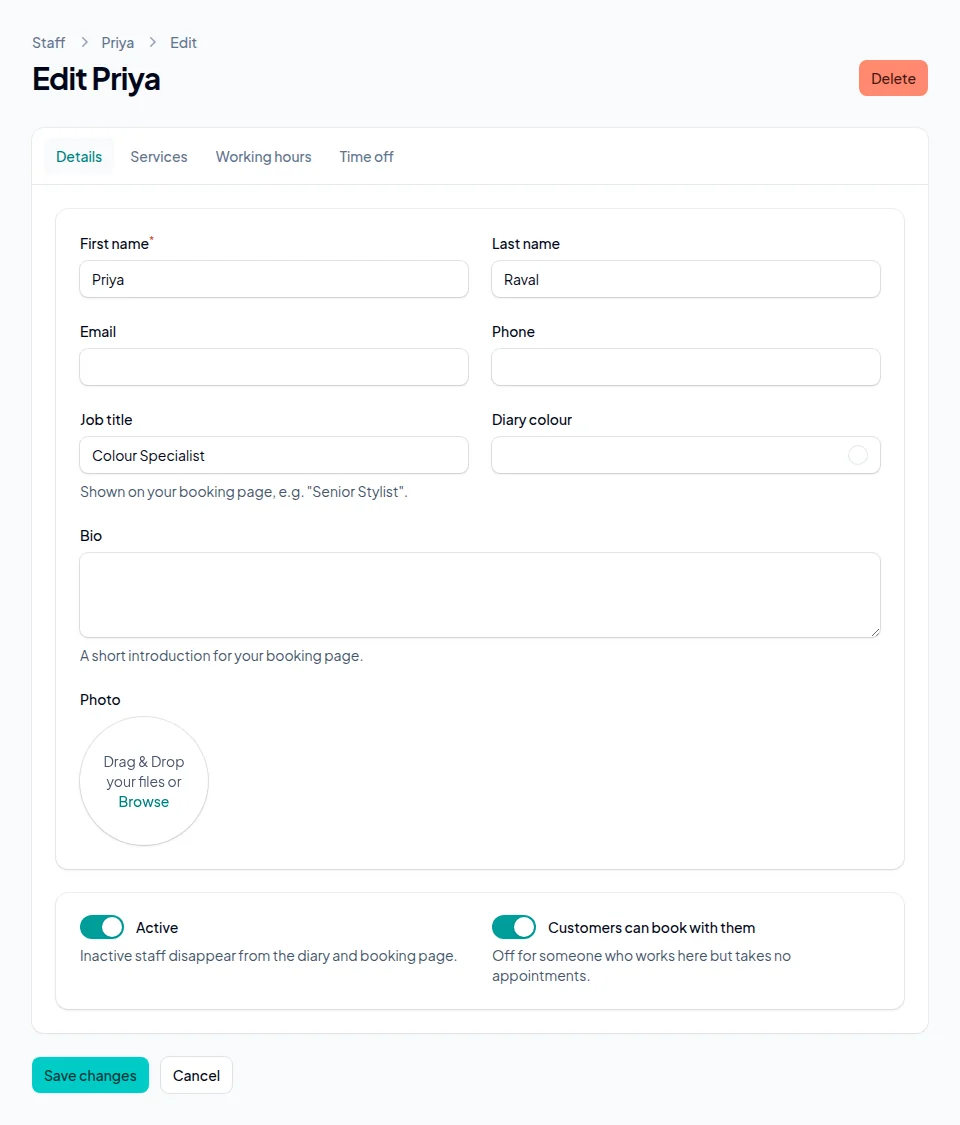
Under What you offer → Staff, add each person. Their name, job title, photo and a line about them appear on your booking page, so a customer can pick "Priya, Colour Specialist" rather than a name they do not know.
Somebody who works for you but takes no appointments, like a receptionist, can stay on the list with Customers can book with them switched off. On the Services tab, tick only what each person does, so nobody books a colour with the stylist who only cuts.
Set their working hours
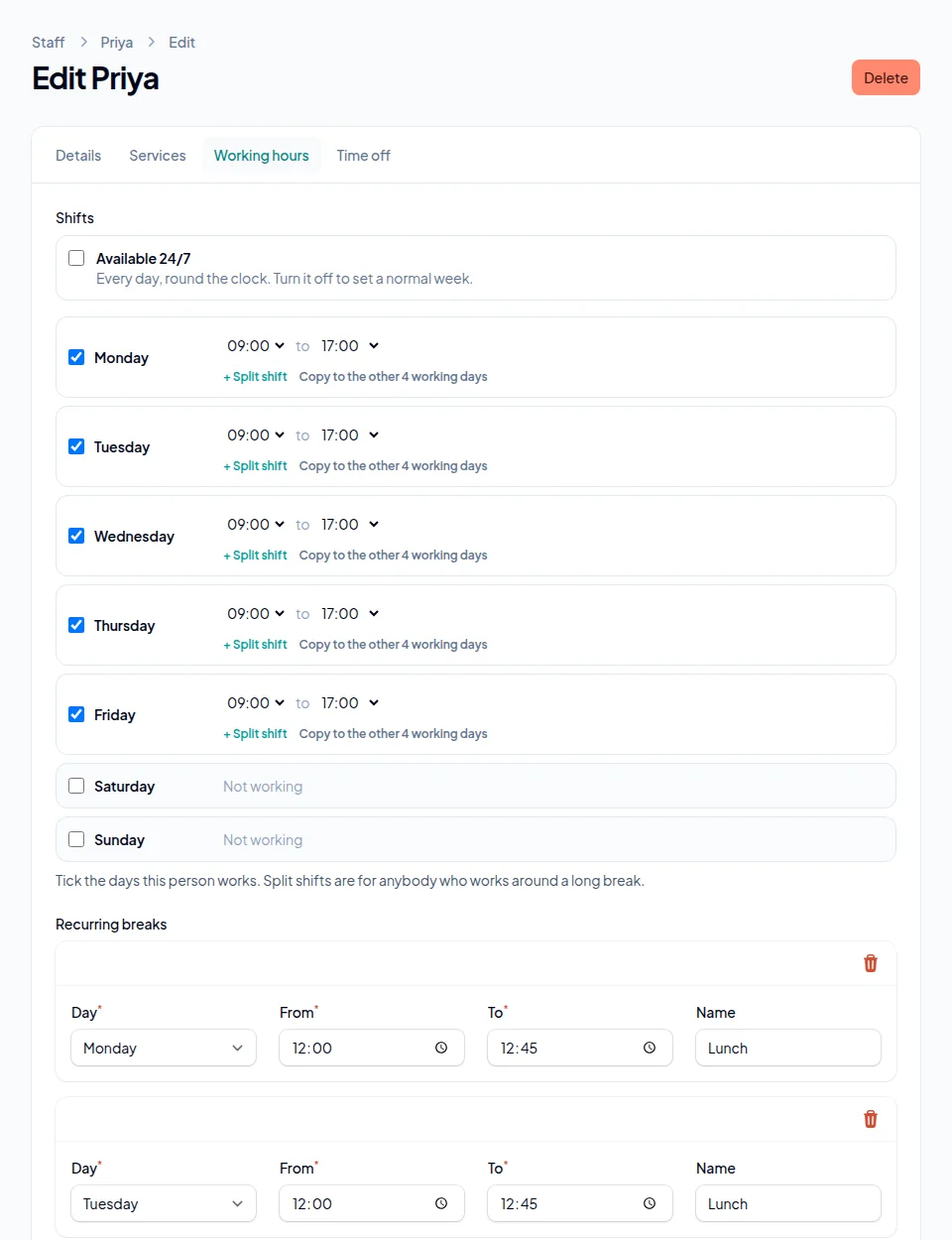
Open the person and go to the Working hours tab. Tick the days they work and choose their start and finish. Copy to the other working days saves setting the same times five times over.
Only times the business is open are allowed. If somebody works mornings only, give them 09:00 to 13:00 and the afternoon simply is not offered. For a split shift, like 9 to 1 and then 5 to 8, use + Split shift.
Add a lunch break that repeats every week
On the same tab, under Recurring breaks, choose Add a break, pick the day, the start and end time, and give it a name like Lunch. Add one for each day it applies.
A break blocks any appointment that would run into it, not only ones starting inside it. With lunch at 13:00, a two-hour colour cannot be booked at 12:00. Each break belongs to one person, so Chloe's lunch does not close Erin's afternoon.
Book holidays and time off
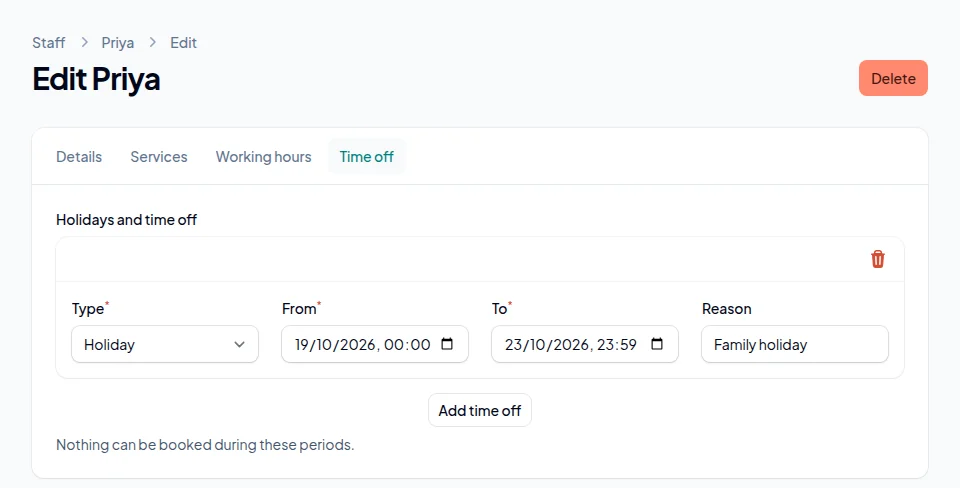
On the Time off tab, choose Add time off. Pick the type (holiday, sickness, training, blocked time or other), when it starts and ends, and a reason if you want one. Nothing can be booked with that person in that time.
Put holidays in as soon as they are agreed, especially the summer ones. If your booking window is 90 days, customers can already see August in May. Time off stops new bookings. Anything already in the diary for those dates stays put, so check the diary and move those appointments yourself.
Check it
Check the diary looks right
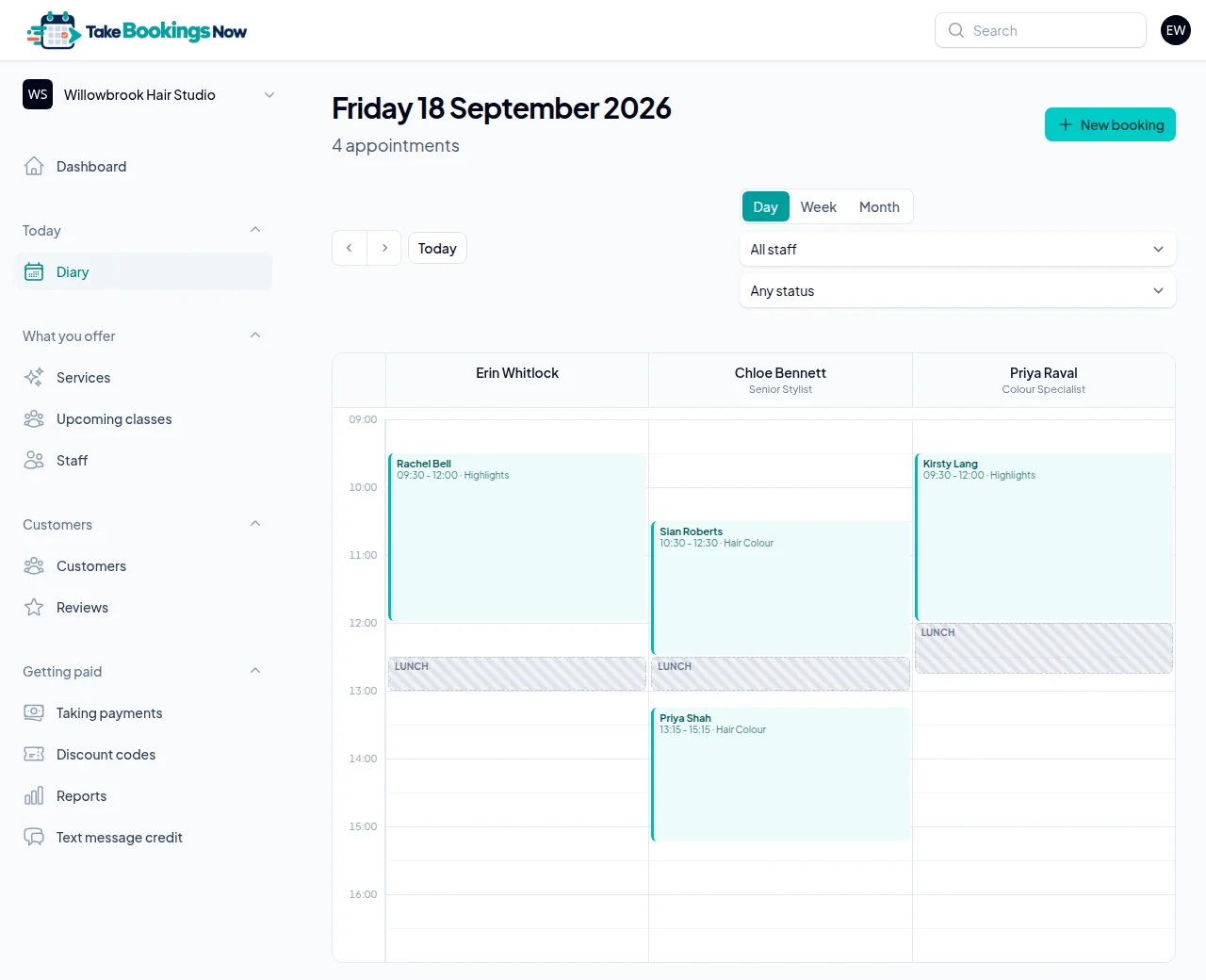
Open Diary and switch to Day. Each person has their own column, and breaks show as shaded bands, so you can see at a glance that lunches are where you meant them.
Then open your booking page on your phone, choose a service and a person, and look at the times you are offered on a day you know well. If a time you expected is missing, it is almost always one of three things: the person's hours, a break, or a service that is longer than the gap.
Give staff a login, if they need one
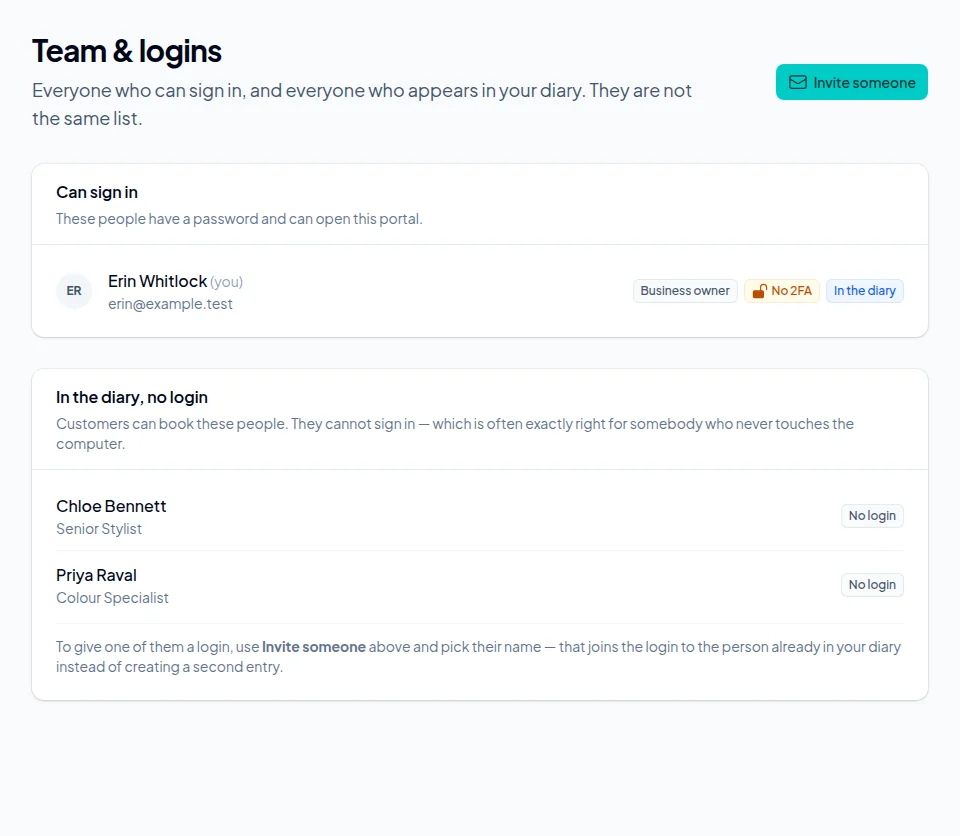
Staff do not need to sign in to be booked. If someone should see the diary on their own phone, go to Settings → Team & logins and choose Invite someone. Pick their name to join the login to the person already in your diary.
Choose what they can do when you invite them. Staff can be limited to seeing their own bookings, while a manager can see everything.
Stuck on a step?
Talk to a person. Start a live chat, or email [email protected] and tell us which step you are on — we will help you finish it.
Common questions
Yes, as long as they fall inside your opening hours. Each person has their own working days and times, split shifts and breaks.
Add a recurring break to that person for each day it applies. Any appointment that would overlap the break is not offered, even if it starts before it.
No new bookings can be made with that person during the time off. Appointments already booked for those dates are not moved, so check the diary and rearrange them.
Add time off for everyone who works that day, with blocked time as the type. Nothing can be booked with anyone that day, and the rest of the week is untouched.
No. The diary here is the record of who is booked when, and it is not synced both ways with other calendars.
No. Staff are unlimited on every account and cost nothing extra.
More guides
How to set up online booking for your business
Create your account, add your services and team, and get your booking page live. Every screen, in order, with screenshots.
How to set up class and group bookings
Weekly class times, places in each class, the list of who is coming, and what customers see when they book a place.
How to take deposits for appointments
Connect Stripe, choose a fixed or percentage deposit per service, and decide what happens to it when somebody cancels.
How to cut no-shows without upsetting good customers
Reminders at the right time, texts for the people who ignore email, deposits where they matter, and a policy customers actually see.
How to add a booking link to Instagram, Google, Facebook and your website
Your booking link on Google, in your Instagram bio, on your Facebook Page and on your own website, with a direct link for each service.
Ready to set yours up?
14 days free. No card required. Set up in an afternoon.
Claim your booking link
See if the address you want is free. No account, no card — it takes a second.
No card required · 14 days free · Your progress is saved, so you can stop and come back